

Use cases & considerations
Webflow offers a comprehensive platform for businesses to design, build, and manage visually stunning websites and their content without the need for coding. To experiment on a site that uses Webflow, we recommend using Statsig Visual Editor to build test treatments and assign users to experiments when they land on your site, all without writing code.Install the Visual Editor Chrome extension
Install the Statsig Visual Editor Chrome extension and follow the Visual Editor setup guide. The extension allows non-technical users to build experiments and treatments directly on top of a live page. You can target by URL and configure text changes, style changes, image swaps, and custom JavaScript for advanced use cases.Add the Visual Editor script to your Webflow site
- Log in to your Webflow dashboard and navigate to your project.
- Access the Custom Code section in your project settings.
- Copy the Visual Editor script tag from the Visual Editor setup guide and replace
client-xxxwith your Client SDK key from Settings > Keys & Environments:
<script src="https://cdn.jsdelivr.net/npm/statsig-sidecar-v2-beta/dist/index.min.js?apikey=client-xxx"></script>
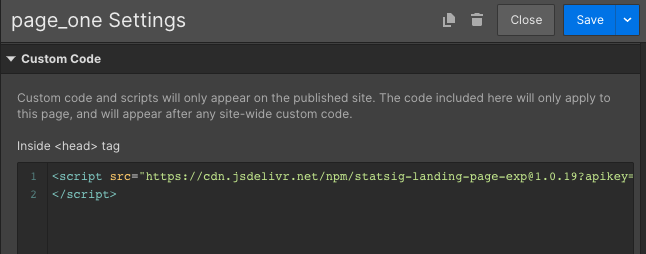
- Paste the script tag into the
<head>section of your Webflow site’s custom code area. - Save and publish your changes to apply the Visual Editor script across your website.
- In Statsig Console, create an experiment and choose Visual Editor as the experiment type before launching the editor.
Optional script parameters
Add these query parameters to the script URL for additional client behavior controls:&reduceflicker=0disables briefly hiding<body>while the client initializes.&autocapture=0disables event autocapture.
Configure event tracking and metrics
Statsig provides several approaches for tracking events when using Visual Editor. You can use built-in Autocapture tracking or set up custom event logging. For detailed guidance, refer to Visual Editor Setup & Usage and the event tracking documentation.Debugging and Troubleshooting
If you encounter issues during the integration or experimentation process, here are some tips:- Verify that the Visual Editor script tag is correctly placed in the
<head>section of your Webflow site. - Confirm you’re using the latest package URL:
statsig-sidecar-v2-beta. - Check the browser’s console for any JavaScript errors that may indicate problems with the script.
- Ensure your experiment is created as a Visual Editor experiment and is active in Statsig Console.
- Confirm the Visual Editor Chrome extension is installed.
- Review the Visual Editor setup documentation for any missed steps.